
Validation the website with Social media code.
After validating client’s dynamic website which is built on CMS (Content Management System)
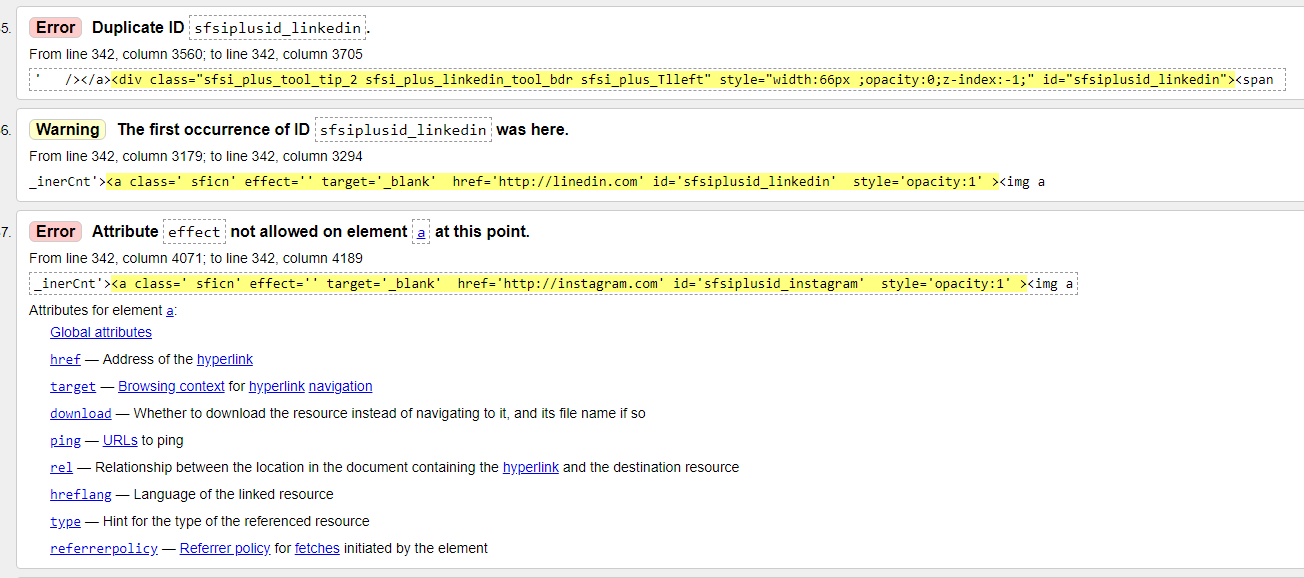
https://australia-design-architects, we found many warnings and social Media error specifically with LinkedIn plugin, the problem is duplicate ID as it’s shown in the picture below. The tool that we have used is https://tools.pingdom.com
Test Social Media performance.
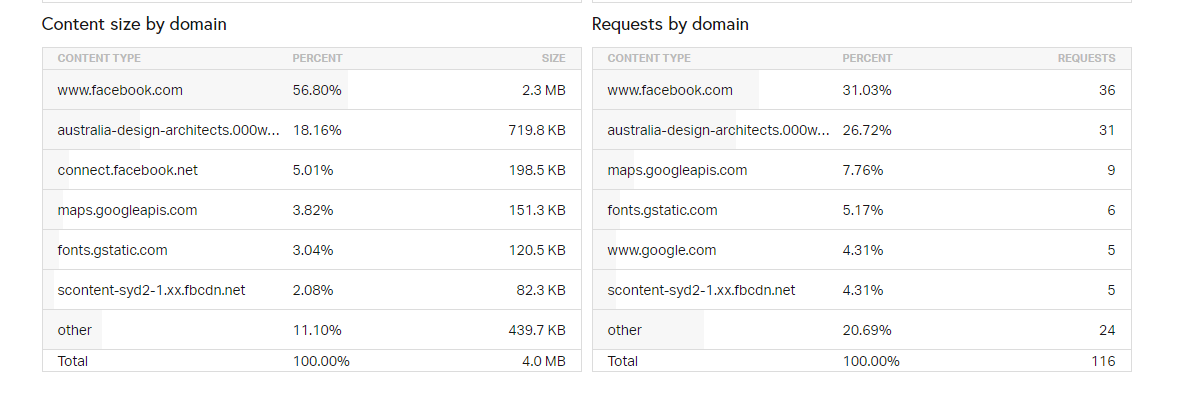
After testing client’s Social Media Performance, we found some issues regarding Facebook content size, we have to work on these issues to get a highly performance. The tool that we have used is https://tools.pingdom.com

Guide to Boost Speed & performance client’s website
The most useful WordPress speed optimization tips to boost WordPress performance and speed up the website, I’ve chosen some tips simple and easy to be fixed, however there are some technical issues need web designer or developer.
- Install a WordPress Caching Plugin, caching can make the WordPress site anywhere from 2x to 5x faster, there are a lot of good WordPress caching plugins available, like WP Rocket or WP Super Cache (free)plugin.
- Optimize Images for Speed, before you upload a photo directly from your phone or camera, it’s recommended that you use photo editing software to optimize your images for web, e.g. Adobe Photoshop
- Keep your WordPress Site Updated, each update will not only offer new features, but also fix security issues and bugs
- Use Excerpts on Homepage and Archives, in order to speed up your loading times for archives pages, you can display excerpts instead of the full content.
- Split Comments into Pages, WordPress comes with a built-in solution for that. Simply go to Settings » Discussion and check the box next to the “Break comments into pages” option.
- Don’t Upload Videos directly to WordPress, you can directly upload videos to your WordPress site, and it will automatically display them in HTML5 player, but you should NEVER do that! Instead you should use a video hosting service like Youtube, Vimeo, DailyMotion, etc. let them take care of the hard work, they have the bandwidth for it!!
- Optimize WordPress database, after using WordPress for a while, your database will have lots of information that you don’t need. For improve the performance, you can optimize your database to get rid of all unnecessary information.
Testing the social media section of the website in the main browsers
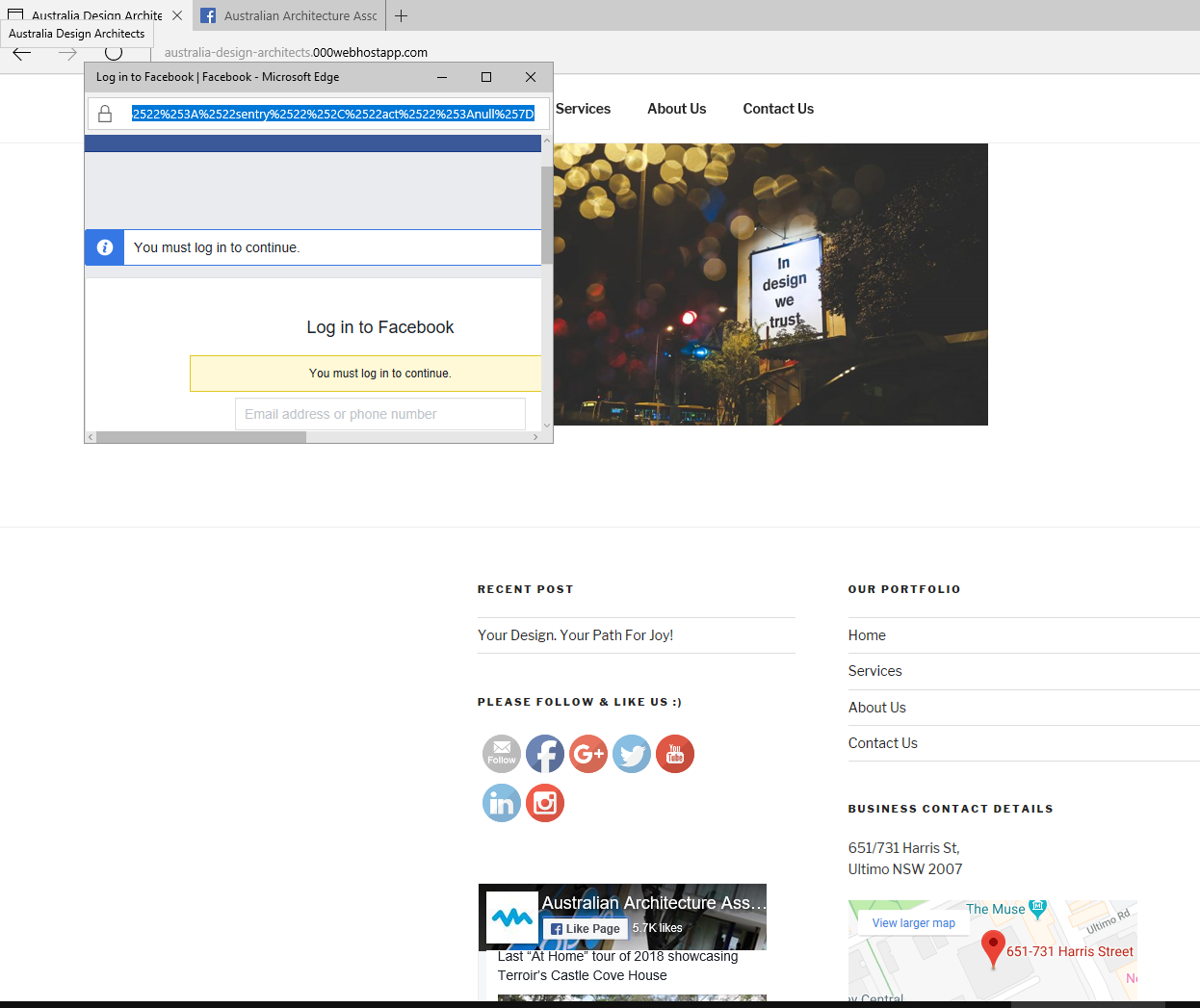
We’ve tested client’s website on different browser, Microsoft Edge for instance, in the beginning when we’ve clicked on social media icon, it hasn’t responded at all, then we’ve refreshed the browser and we’ve got a signal from the web hosting provider that allowed us linked to client’s social media account. Below screenshot the results when we were able to link the client’s website and social media account.
Testing if social media is mobile responsive
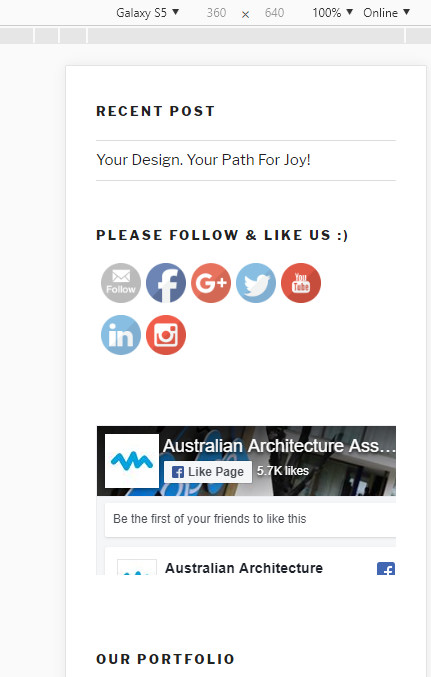
We’ve tested client’s social media on different devices and how they will be linked to other platforms, below screenshots the results
Social Media Links on Galaxy S5
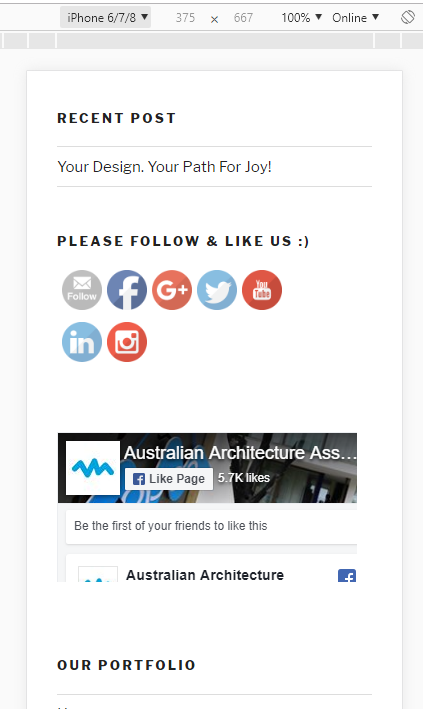
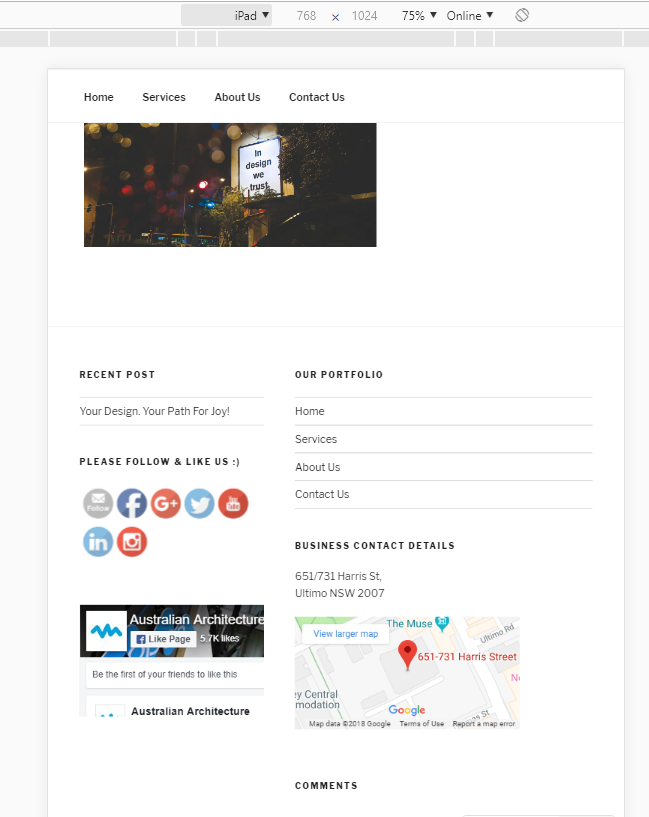
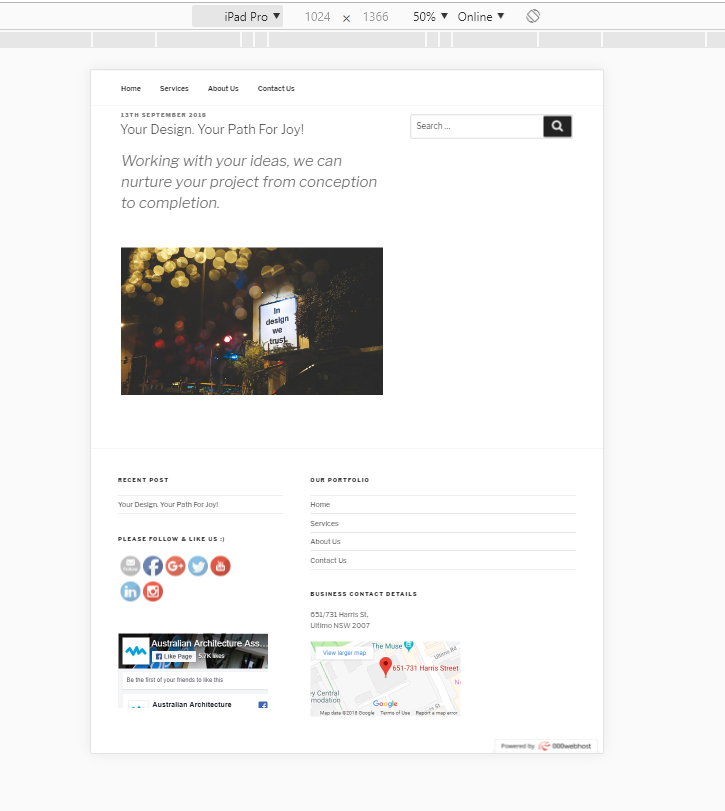
Testing the social media on popular devices to make sure there are noissues
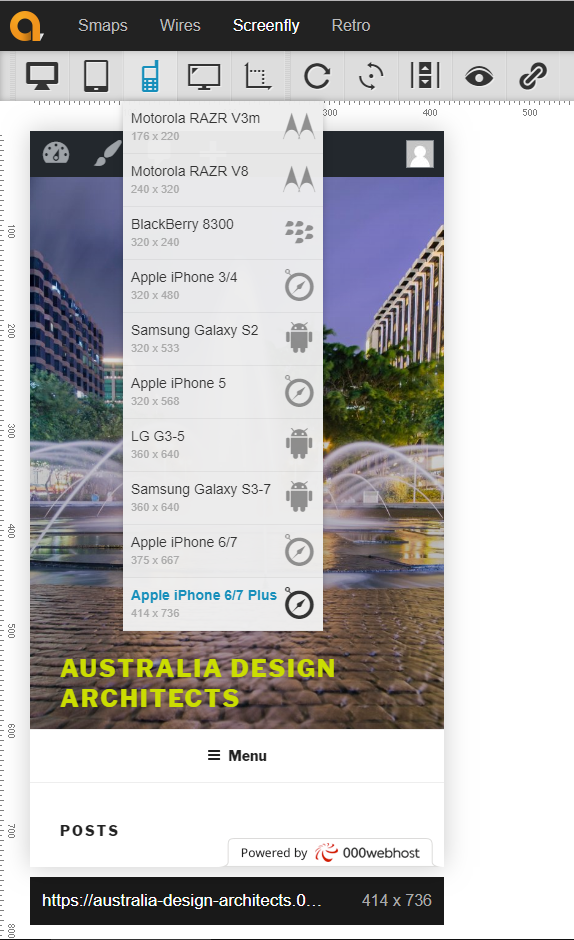
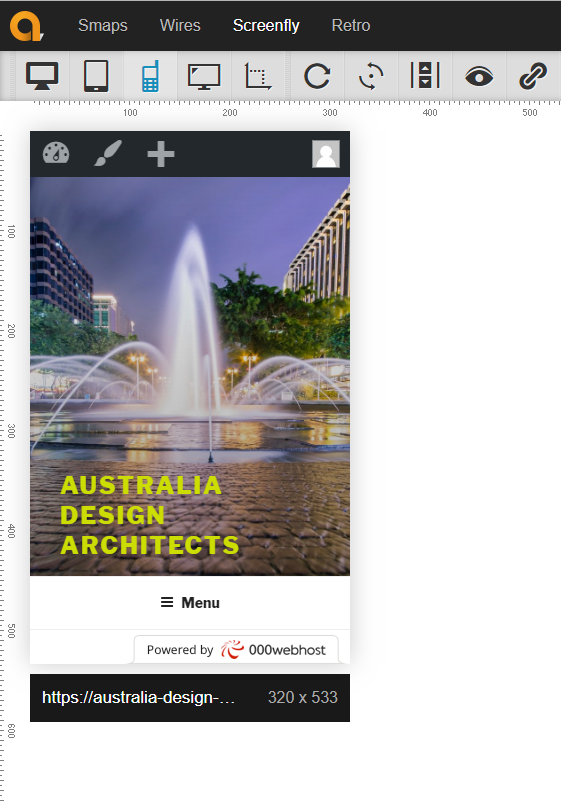
We’ve tested client’s website on popular devices iPhone, Galaxy, PC, iPad, tablet and TV screen to make sure there is accessibility for everyone from anywhere. By using a tool like http://quirktools.com/screenfly that allows us to take screenshots the results down below.
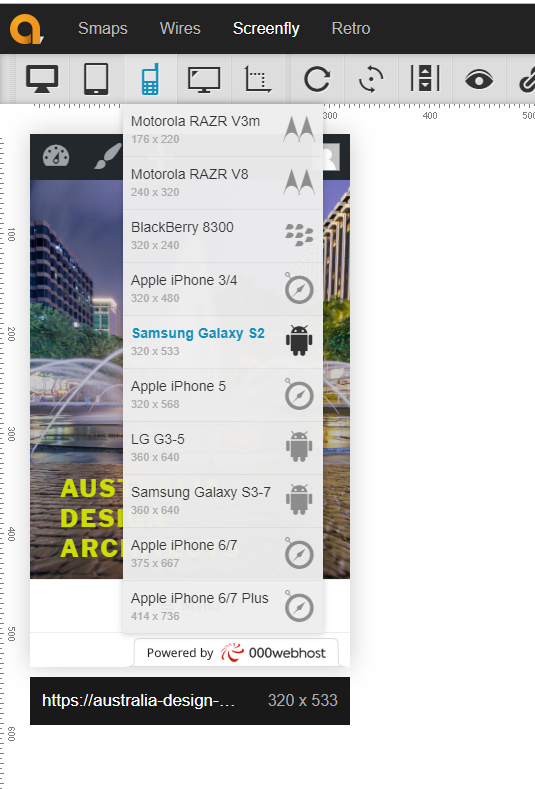
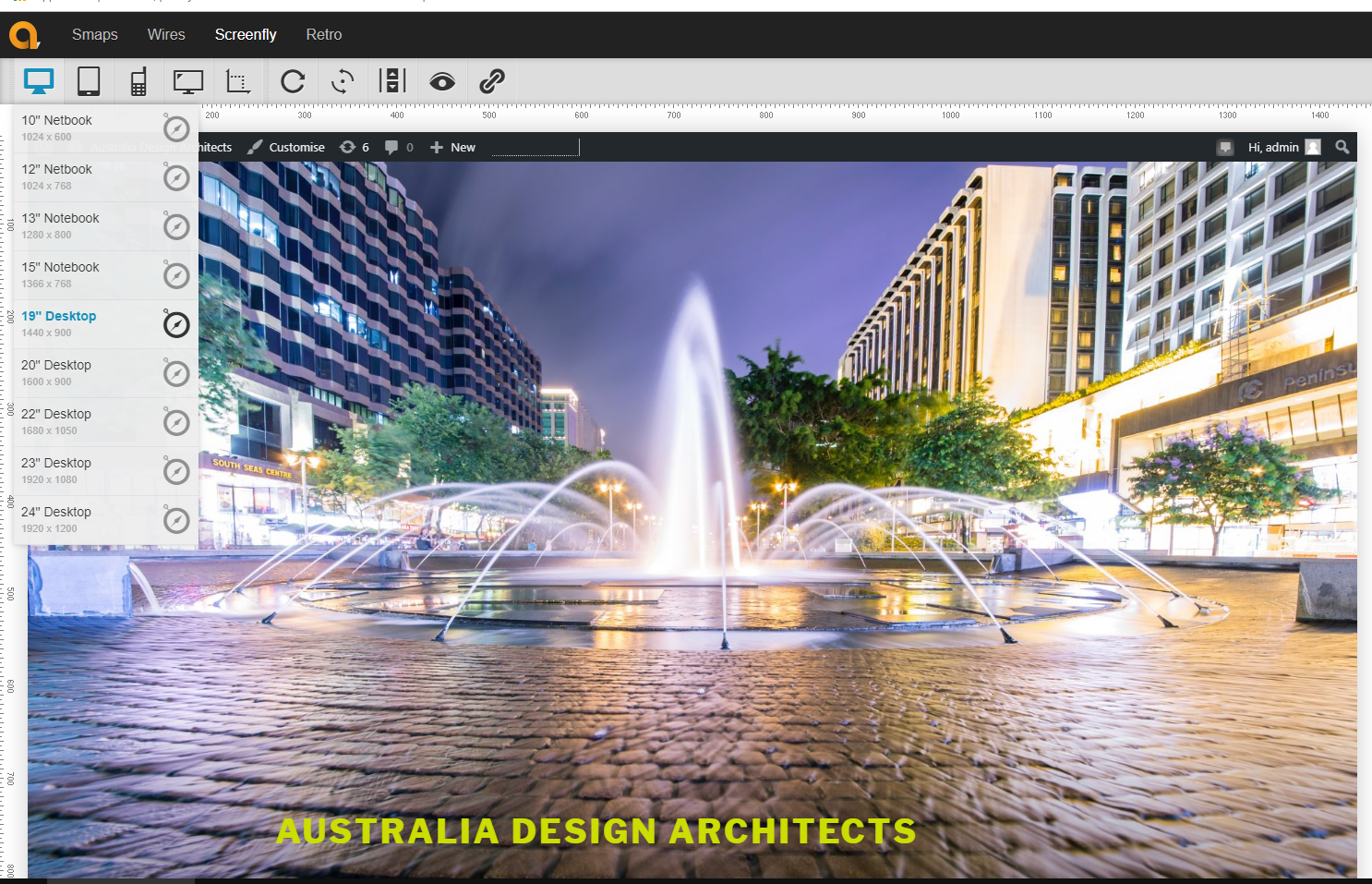
Client’s social media and website on Desktop
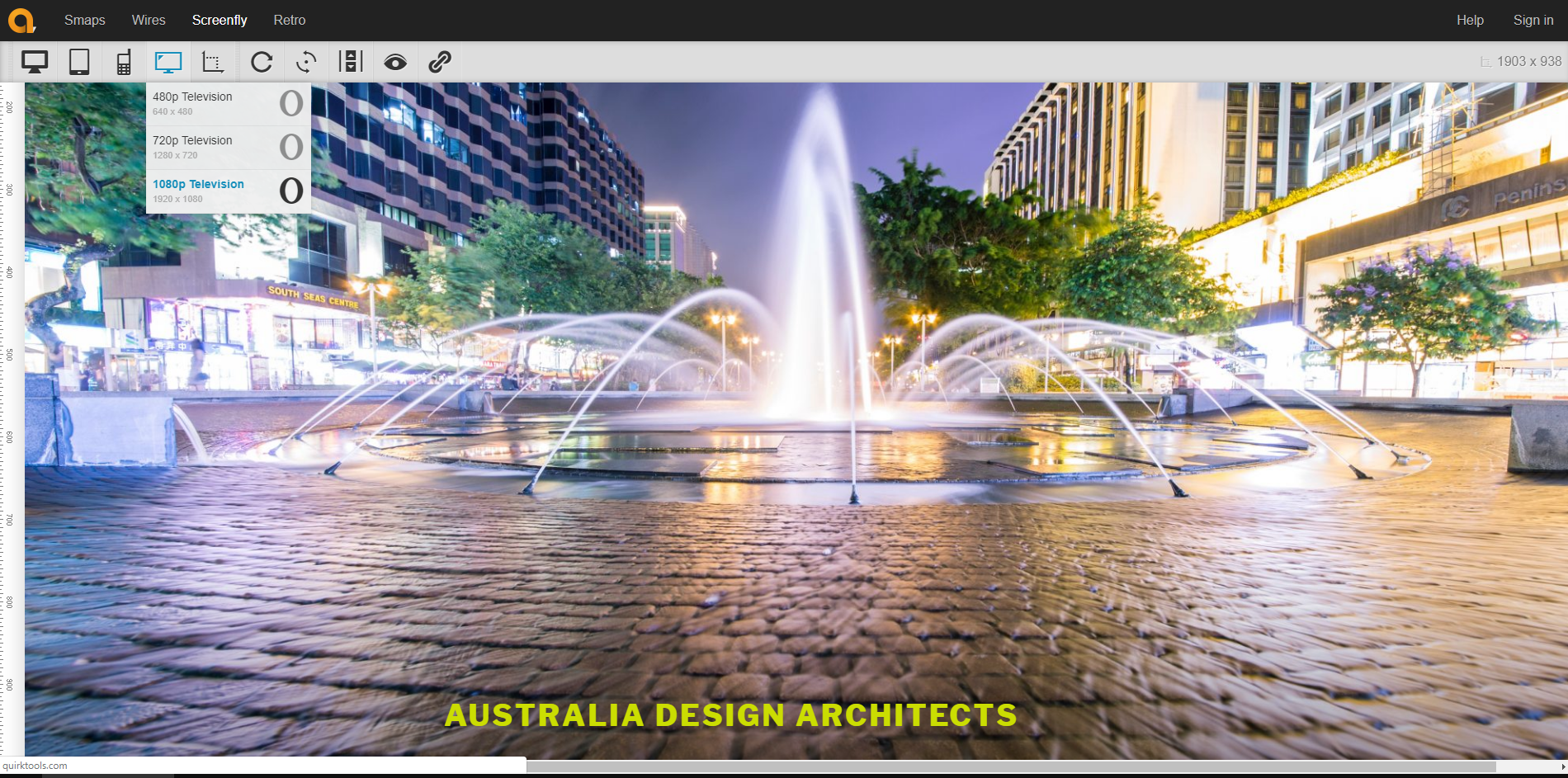
Client’s social media and website on TV
 Jakleen Web Designer