
Define threats on the internet:
· Viruses and malware; they refer to malicious software created internationally to comprise your devices, your software, privacy or sensitive personal information.
· Online scams; these exist in the form of messages, emails or social media.
· Hackers; people who use their knowledge of technologies to investigate your online actions and obtain the sensitive information, they are able to do this because you are not taking the proper precaution, such as installing the proper software firewall, keeping software up to date, you are sharing information over public Wi-Fi, using weak password or other ways.
· False information; when you are using the internet to do research, be aware that there are many sites that do not contain credible information.
· The urge to pirate content; mainly because it’s so easy to do online, there are places where you can share files with others or download that allow you to obtain free copies of software or other content. Not only is illegal, but also dangerous and common way to acquire viruses or malware.
· Oversharing personal information; this often done of social media sites, forums, emails, or on websites that you’re using in which you submit your information. Remember that we must keep our personal information private.
Obtain TAFE internet policy:
TAFE Internet Policy for staff;
Staff of TAFE NSW are required to:
Abide by the acceptable use of information and technology agreement, signed after induction and refreshed annually.
Implement security practices as communicated within the security awareness program, including when sharing information with external parties, including government and non-government organizations.
Report suspected security violations or beaches, including suspected weaknesses and vulnerabilities.
TAFE internet Policy for students;
Students of TAFE NSW are required:
Abide by acceptable use of information and technology agreement, signed at the enrolment.
Implement security practices as communicated within the security awareness program.
Report suspected security violations or breaches, including suspected weaknesses and vulnerabilities
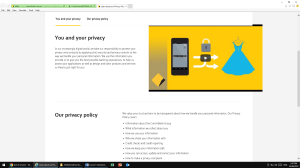
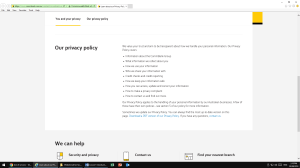
Obtain the policy from online Bank: CBA Bank
https://www.commbank.com.au/support/security.html
Define digital footprint:
Is our collective trial of actions while using the internet, this includes social media activities, articles, assignments or purchases we make and much more.
Although some of this information is kept more private that others, it all contributes to our digital footprint, 60% of employers use social networking sites to research potential candidates, this number to rise each year and only refer to social networking, many more will google us, 49% of employers have claimed that they didn’t hire a candidate due to what they found online like inappropriate pictures, videos or other information, posts related to drugs, alcohol or discrimination.
How to create and promote a positive digital footprint;
We believe that it’s critical to work hard to create a positive, it’s very important to paint a great online picture of our selves. How can we do this? Avoid any negative behaviour online, but take the next steps. Connect with other professionals on social media sites such as LinkedIn, Twitter and Facebook. Join groups, conversation, forums and chats that discuss positive topics related to what you want to do or who you want to become. Share the interesting articles or blogs posts in order to show what you’re passionate about.
Topic 2 – protecting yourself Online;
List at least 3 things to do to find out if a website is reliable;
1. Try typing in the name of the website along with the word reviews, or the word scam and see what you find out
2. do a little investigation before trusting a website like use a site such as Norton’s Safe Web.
3. Always use site using SSL protocol which means Secure Sockets Layer or locker sign on the front of domain name like (https:) for example.
List at least 3 items you consider your sensitive (personal) information
1. Email address
2. Phone number
3. Credit card number
Define;
· Strong password; when we use the internet, it’s important to make sure using quality password, there are some things to consider when we create one. First the length at least ten or more character, we use a combination of uppercase and lowercase, as well as numbers and symbols and change the password every few months.
· Password management application or password manager; that app allows us to store and manage the passwords, including programs that allowed us to create, store and even enter in password automatically for your account.
·UTHENTICATION VS AUTHORISATION PROCESSES; AUTHENTICATION AMEANS confirming your own identity (login) find out who you are, while the authorisation means granting access to the system (take place after successful authentication)
Explore the Settings of the following applications on your computer (in TAFE or at home)
Internet Explorer; open internet explorer by clicking the button, click the toolbar and select internet option.
Google Chrome; in the right corner click chrome menu and setting, click advanced to expand click content setting, click cookies then click on slider to enable at the close the setting tab.
Firefox; click the menu button and choose preferences, select advanced panel and click the network tab, go to proxy section, click setting the connection setting dialing will open.
Research and list the top-five most popular (free) anti-virus software applications in 2018.
Norton, McAfee, Bitdefender, Kaspersky and Avast.
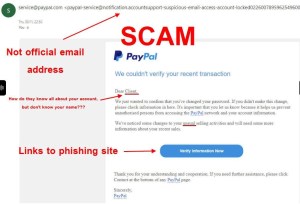
Define Phishing scams and provide a personal example (either email, webpage or mobile phone message).
Phishing scams are extremely unethical way that cyber criminals deceive you with the intention of stealing your money, they do that by tricking you into voluntarily paying money or downloading malware that allows them to access to private personal information such as password and credit cards numbers.
down below an example of email scam;
List (at least 3) concerns when using public computers.
· Do not stay logged in in public computers and uncheck the option to stay signed in box.
· Do not make your browser remember your password for that site specially on public computers.
· Delete your browser history and tracking cookies, etc.
List (at least 3) concerns when using public WIFI.
- ·When we use public Wi-Fi, connection means that we’re connected to Wi-Fi network that other people are also connected to.
- ·That makes it easier access to other to be able to hack into your device.
- Do not share sensitive information such as social security, credit card number, address, etc.
List (at least 3) concerns when using purchasing online (either using a computer, iPad or phone).
- When you order or shopping online, be careful where you order them from, if secure site using SSL, https before you put your personal details.
- Use credible sites that their URL start with https.
- If there is padlock symbol and click on it, it lets you know that my information’s private, the site is secure and gives you more information about it.
Define Digital Citizenship:
If we find information on the internet, make sure to use it appropriately and cite the sources appropriately. Resist the urge to download pirated software, music, videos or other online contents. This unethical and illegal. Don’t try to access other people’s accounts or view their personal information unethically and finally respect the privacy of other.
Define the following:
Firewall, Router, Intranet, Internet
firewall: is a network security system designed to prevent unauthorized access to or from a private network.
Router: is a hardware device designed to receive, analyse and move incoming packets to another network.
Intranet: is a private network accessible on an organisation staff, a wide range of services are available on an organisation internal intranet that are not available to the public.
Internet: is a global network connecting millions of computers. They are linked and exchanged the data and information.
Encryption, Decryption, Compression, Decompression
Encryption: is the process of encoding message or information in such a way that only authorised parties can access them.
Decryption: the conversion of encrypted data into the original form, it’s a reverse process of encryption.
Compression: the process of reducing the size of data file
Decompression: is the action of reversing data compression
Authentication and Authorisation;
Authentication is confirming your own identity, while authorisation means granting access to the system
E.G. when we log on to a PC with a user name and password, we are authenticating. Authorisation is the process of verifying that we have access to something.
What is the difference between 2.4 GHz and 5GHz?
This number refer to 2 different bands that Wi-Fi can use for its signal, the differences are;
o Speed, with 2.4GHz Wi-fi will support up to 450Mbps or 600Mbps. 5GHz Wi-Fi will support up to 1300Mbps
o The 2.4GHz band is crowded place. Because it’s not only uses by Wi-Fi but also any devices tend to use 2.4GHz band like cordless phone, garage door opener, baby monitor, etc. the longer waves used by the 2.4GHz band are better suited to the longer ranges and transmission through walls and solid objects. As a result, the connection will be dropped and slower than expected.
o The 5GHz band is less congested which means, will be more stable connections and higher speed, on the other hand the shorter waves make it less able to penetrate walls and solid objects.
Compare Wi-Fi protocols: WEP and WPA2
Wired Equivalency Privacy (WEP);
WEP was designed with one goal in mind is to prevent hackers from snooping on wireless data as it was transmitted between clients and access points (Aps), however WEP lacked the strength to accomplish this. Cybersecurity experts identified several severe flaws in WEP, eventually leading to industrywide recommendations to phase out the use of WEP in both enterprise and consumer devices.
Wi-Fi Protected Access 2 (WPA2);
In numerous flaws in WEP revealed urgent need to an alternative, in 2003 Wi-fi Alliance released WPA as interim standard while the institute of electrical and electronic engineers (IEEE) worked to developed more advanced and long-term replacement for WEP. As a successor for WPA, the WPA2 standard was ratified by IEEE in 2004, although the WPA2 has vulnerabilities, it’s considered the most secure wireless security standard available.
Compare between IP addresses and MAC addresses
IP address is a 32-bit address, it’s a logical address for any device which it communicates to the outside world, also is in the seventh layer in OSI model
MAC address (Media Access Control) is a hardware and physical address for any devices which is unique to the network card installed on the PC.
Define the following:
SSID:
Service set identifier is a sequence of character that uniquely names the wireless network local area, sometimes it refers to as a “network name”
Channel:
refers to either a physical transmission medium such as wire, or a logical connection over a multiplexed medium such as a radio channel in telecommunication and computer networking.
MAC address Authentication:
Use Mac address-based authentication to authenticate devices based on their physical addresses (MAC address), also can be used to authenticate Wi-Fi phones as additional layer in security.
VPN and how to use to improve public Wi-Fi safety:
There are several ways to protect yourself when using public Wi-Fi , one of the best way is using a VPN (virtual Private Network) which encrypts your internet connection to secure it and protect your privacy.
Tow factor Authentication:
Also known as 2FA, 2 steps verification or TFA, is an extra layer of security that required not only password and user name but also something that user has on them like information as a questions, code that we receive it through our contact number, etc.
HTTP: Hypertext Transfer Protocol
HTTPS: Hypertext Transfer Protocol over Secure
FTP: File Transfer Protocol
FTPS: File Transfer Protocol over Secure
PPTP: Point-To-Point Tunnelling Protocol
L2TP: Layer 2 Tunnelling Protocol
SSL:
Secure Sockets Layer which is the standard security technology through encrypted link between the web server and the browser. This link ensure that all data pass between the web server and browser remain private and integral, you have to have a certificate to be able to create a SSL.
 Jakleen Web Designer